
KEYWISE · MAC SHORTCUTS
F11 shows the desktop, but the keyboard test stays blank
If Fn + F11 reveals your desktop, the key is triggering a macOS action. The page may never receive that press. An unmarked F11 is therefore not enough evidence of a faulty key.
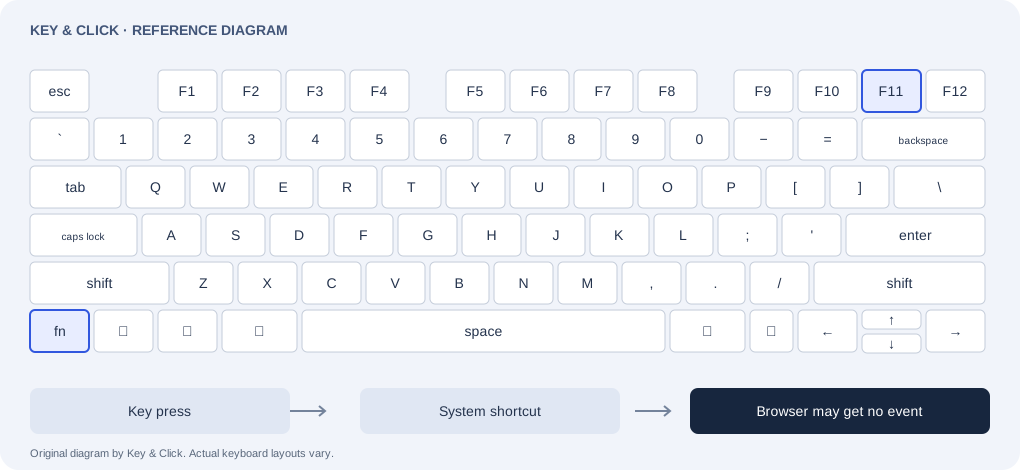
Why one key can stay unmarked
Apple documents F11 as a desktop shortcut. Fn changes which function of the top row is requested; it does not guarantee that a website receives the resulting event. The operating system can use the shortcut first.
In Key & Click, green means that this session received a matching event. If a reference shows 76 of 77 keys, the remaining key is unobserved, not automatically broken. The percentage describes browser observations, not a hardware health score.
Check the assignment, then retest
- Open System Settings → Desktop & Dock. In the Mission Control section, open Shortcuts and inspect Show Desktop. Names and locations can differ with the macOS release.
- Note the original assignment. If it uses F11, you can temporarily choose a different shortcut or no assignment where offered. Changing the function-row setting alone does not necessarily remove this assignment.
- Return to the test, confirm macOS and your physical layout, and click the keyboard area. Try F11 and, according to your function-row setting, Fn + F11. Do not type into a menu or input field during the check.
- Compare the result and restore the shortcut you prefer. If the key still does not appear, check another app or browser and the key details; a web test alone cannot decide the cause.
What this test will not assume
We cannot inspect your Show Desktop assignment from this page. We do not mark F11 as passed because other function keys work, and we do not count an operating-system action as a received browser event. Fn remains optional in coverage.
Settings and behavior vary by OS release, browser and device. This is a troubleshooting guide, not hardware certification.
Suggest a correction →