
KEYWISE · TROUBLESHOOTING
A key is not detected: check the path before blaming the keyboard
“Untested” means that this test has not received the expected event. The cause may be focus, a shortcut, the selected diagram, a connection or the device. Start with a comparison, not a failure verdict.
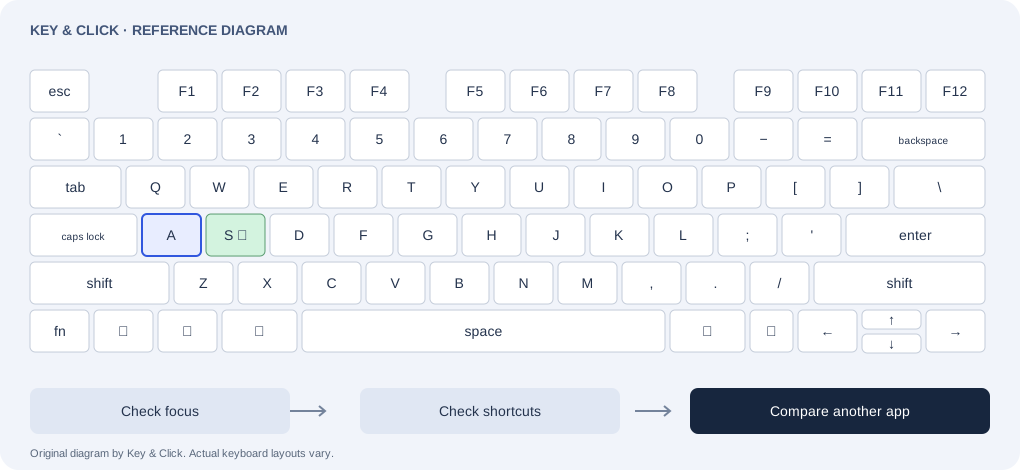
First, check the test itself
- Keep the keyboard in view and listening enabled. Click its empty area so focus is outside the language menu, other controls and the report.
- Match the diagram to your physical keyboard. Interface language, printed legends, geometry and operating system are separate choices. Use key details to compare the character with the physical code.
- Use Highlight untested to find missing observations. Exclude a key only if it is physically absent, not just because a shortcut intercepted it. Otherwise the percentage hides the unresolved observation.
- For a normal letter, compare in a text editor. For Fn or a function key, inspect the intended action and shortcut settings instead. Note whether the issue affects one key, a combination, one application or the whole device.
If the keyboard or mouse is unresponsive
Check power or battery charge and the cable or wireless receiver. Reconnect an external device and try a direct USB port instead of a hub. Where possible, compare on another compatible computer. Microsoft’s guide covers these checks for both mice and keyboards.
This page tests keyboard events; it does not measure mouse switches or certify either device. A device that works elsewhere points to a different troubleshooting path from one that fails everywhere. Use the manufacturer’s service guidance if the problem persists.
Check settings that change input
On a Mac, accessibility options such as Slow Keys can change when a press is recognized. On Linux, check the documentation for your desktop environment: GNOME, for example, documents Slow Keys, Bounce Keys and shortcut configuration. These are useful accessibility features; only change a setting deliberately and restore it if you rely on it.
Keep a useful record
The local report lists observed, untested and excluded keys separately. Add your OS version, browser, keyboard model and what happened in another app when asking for help. Do not include passwords or private text. Our contact form can prepare a report draft; it does not yet submit messages.
Settings and behavior vary by OS release, browser and device. This is a troubleshooting guide, not hardware certification.
Suggest a correction →